Fix Ubisoft Connect Error Dolphin-028: Stop the Login Loop
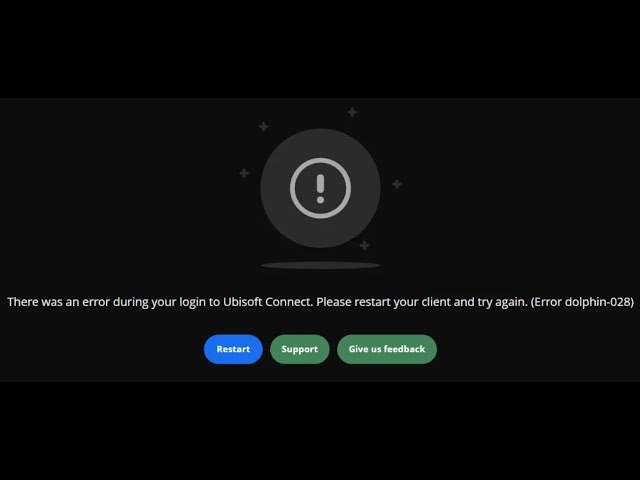
Few things are as frustrating for a gamer as being locked out of their digital library. If you've encountered the dreaded Ubisoft Connect Error Dolphin-028, you know this feeling all too well. This persistent issue traps users in an endless login loop, displaying the message: "There was an error during your login to Ubisoft Connect. Please restart your client and try again. (Error dolphin-028)"
The Dolphin-028 error effectively prevents you from accessing any Ubisoft Connect games, including single-player titles, by blocking the critical authentication process. This often signals that your launcher cannot establish a stable and secure connection with Ubisoft's servers. While server-side outages are a common culprit, local network misconfigurations can also play a significant role. This comprehensive guide will walk you through diagnosing and resolving the Dolphin-028 error, helping you get back into your games.
Diagnosing the Root Cause: Server vs. Local Issues
Before diving into potential fixes, the crucial first step is to determine whether the problem lies with Ubisoft's servers or your local setup. Attempting local solutions during a widespread outage is akin to trying to fix a flat tire when the entire road is closed – futile and frustrating.
Server-Side Outages and Maintenance
The most frequent cause of the Ubisoft Connect Error Dolphin-028 is a temporary server-side issue. This could be due to scheduled maintenance, unexpected outages, or high server load. Ubisoft is generally good at acknowledging these on their official channels.
- Check Ubisoft's Server Status: Always start by visiting the official Ubisoft Support page or their official Twitter support account. These are the primary sources for real-time updates on server status for all Ubisoft services and games.
- Monitor Official Forums: Ubisoft's community forums often have live discussions and updates from other users experiencing the same problem. This can be a good indicator of a broader issue.
- Third-Party Status Trackers: Websites like DownDetector can also provide crowd-sourced information on outages, giving you an idea if many users are reporting problems.
If an ongoing outage or maintenance is confirmed, the best course of action is patience. Local fixes will not work until Ubisoft restores connectivity. For a deeper dive into identifying server-related issues versus local network blocks, you might find our dedicated article helpful: Ubisoft Connect Dolphin-028: Server Outage or Network Block?
Initial Local Checks
Even if you suspect a server issue, it's always good practice to perform these quick local checks:
- Restart Your Router: A simple router reboot can often clear temporary network glitches and refresh your connection. Power it off, wait 30 seconds, and then power it back on.
- Full Ubisoft Connect Restart: Ensure Ubisoft Connect is fully closed. Open Task Manager (Ctrl+Shift+Esc), go to the "Processes" tab, find "Ubisoft Connect" or "Uplay" related processes, and click "End task." Then, try launching it again.
Core Solutions to Break the Login Loop
If Ubisoft's servers are confirmed to be operational, the problem likely stems from your end. Here are the most effective solutions to tackle the Ubisoft Connect Error Dolphin-028.
1. Run Ubisoft Connect as Administrator
Insufficient permissions can sometimes prevent Ubisoft Connect from accessing necessary network settings, system files, or firewall exceptions required to establish a stable connection. Running the client with administrator privileges grants it the unrestricted access it needs.
- For a One-Time Launch:
- Locate your Ubisoft Connect desktop shortcut.
- Right-click the shortcut and select "Run as administrator."
- To Make it Permanent:
- Right-click the Ubisoft Connect shortcut and select "Properties."
- Navigate to the "Compatibility" tab.
- Check the box next to "Run this program as an administrator."
- Click "Apply," then "OK."
Launch Ubisoft Connect and check if the login loop has been resolved.
2. Reset Your Ubisoft Password and Refresh the Login Token
An expired authentication session, a temporary account lock due to multiple failed login attempts, or corrupted login tokens can all trigger the Dolphin-028 error. Resetting your password forces a refresh of your login session and can often resolve these authentication-related issues.
- Open your web browser and go to the official Ubisoft website.
- Log in to your Ubisoft account (even if you're experiencing issues with the client, the website login usually works).
- Click your profile icon in the top-right corner and select "Account Management."
- Navigate to the "Security" tab.
- Under the "Password" section, click "Change."
- Follow the prompts. You will receive a password reset link at your registered email address. Create a strong, new password.
After resetting your password, it's highly recommended to enable (or re-verify) two-factor authentication (2FA). This not only enhances your account security but often acts as another layer of authentication refresh.
- Return to the "Security" tab in Account Management.
- Under "2-Step Verification," click "Activate" (or verify it's active).
- Select your preferred method for receiving verification codes (e.g., email or authenticator app).
- Enter the received code and click "Submit."
Important: Before attempting to log back into Ubisoft Connect, sign out of your Ubisoft account on any other PCs or devices. Additionally, make sure to save your recovery codes in a secure place in case you ever lose access to your chosen 2FA method.
For more detailed instructions on these core fixes and other troubleshooting steps, refer to our article: Troubleshoot Dolphin-028: Admin, Password, & Network Fixes.
Advanced Network Troubleshooting for Dolphin-028
If the above core solutions don't resolve the Ubisoft Connect Error Dolphin-028, the issue likely lies deeper within your network configuration. These problems can disrupt the crucial TLS handshake – the secure, encrypted "greeting" Ubisoft's servers need before allowing your login.
1. Flush DNS Cache and Change DNS Servers
DNS (Domain Name System) acts like the internet's phonebook, translating human-friendly website names (like ubisoft.com) into numeric server IP addresses. Corrupted DNS cache or unreliable DNS servers can prevent your system from finding Ubisoft's servers correctly.
- Flush DNS Cache:
- Press Windows Key + R to open the Run dialog.
- Type
cmdand press Ctrl+Shift+Enter to open Command Prompt as administrator. - In the Command Prompt, type
ipconfig /flushdnsand press Enter. You should see a message confirming the DNS Resolver Cache was successfully flushed.
- Change DNS Servers: Consider temporarily switching to public DNS servers like Google DNS (8.8.8.8 and 8.8.4.4) or Cloudflare DNS (1.1.1.1 and 1.0.0.1) which are often faster and more reliable than your ISP's default. You can do this in your network adapter settings or directly on your router.
2. Check MTU (Maximum Transmission Unit) Settings
MTU defines the largest packet size that can be transmitted over a network. An unusually high MTU value can lead to packet fragmentation or loss, disrupting secure connections. While less common to be the primary cause, it's worth considering.
- How to Check: You can typically find your router's MTU settings in its administration panel. Most home networks work well with an MTU of 1500 (Ethernet) or 1492 (PPPoE). If yours is significantly different, especially higher, it might be worth researching how to adjust it for your specific router model, or contacting your ISP.
3. Disable VPNs or Traffic-Filtering Tools
Virtual Private Networks (VPNs) and certain traffic-filtering tools (like GoodbyeDPI, which is designed to bypass ISP blocks) can inadvertently interfere with the secure connection (TLS handshake) required by Ubisoft Connect. They can encrypt or re-route traffic in a way that Ubisoft's servers don't expect, leading to the Dolphin-028 error.
- Temporarily Disable: If you're using a VPN, proxy, or any third-party network optimization/filtering software, try temporarily disabling it and then attempting to log into Ubisoft Connect. If this resolves the issue, you'll need to configure an exception for Ubisoft Connect or run it without these tools enabled.
4. Verify Firewall and Antivirus Settings
Your operating system's firewall (e.g., Windows Defender Firewall) or third-party antivirus software can sometimes mistakenly identify Ubisoft Connect's connection attempts as suspicious and block them. This can prevent the client from communicating with Ubisoft's servers.
- Check Firewall Rules: Ensure that Ubisoft Connect (and any related services) is allowed through your firewall. You can usually find this in your Windows Security settings or your antivirus program's dashboard.
- Add Exceptions: Manually add exceptions for
UbisoftGameLauncher.exeandUbisoftGameLauncher64.exe(located in your Ubisoft Connect installation folder, typicallyC:\Program Files (x86)\Ubisoft\Ubisoft Game Launcher) to both your Windows Firewall and any third-party antivirus software. - Temporary Disable (Caution): As a last resort for testing purposes, you can temporarily disable your antivirus and firewall to see if the error persists. Remember to re-enable them immediately after testing to maintain your system's security.
What to Do When All Else Fails: Contact Ubisoft Support
If you've systematically worked through all the troubleshooting steps above and are still encountering the Ubisoft Connect Error Dolphin-028, it's time to reach out to Ubisoft Support directly. They have access to advanced diagnostic tools and can investigate account-specific or network-specific issues that are beyond typical user fixes.
When contacting support, be sure to provide them with as much detail as possible:
- The exact error message (Dolphin-028).
- All the troubleshooting steps you have already attempted.
- Your system specifications (OS, CPU, GPU, RAM).
- Details about your network setup (ISP, router model, wired/wireless connection, use of VPNs or proxies).
- Any recent changes to your system or network.
Conclusion
The Ubisoft Connect Error Dolphin-028 can be a frustrating barrier to your gaming experience, but with a systematic approach, it is often resolvable. By first ruling out server-side issues, then applying core fixes like running as administrator and refreshing your login credentials, and finally delving into advanced network troubleshooting, you significantly increase your chances of stopping the login loop. Remember that patience and methodical testing are your best allies in overcoming this common Ubisoft Connect hurdle. Good luck, and happy gaming!